
Lost Phone? Here's Exactly What to Do (Fastest to Last Resort)
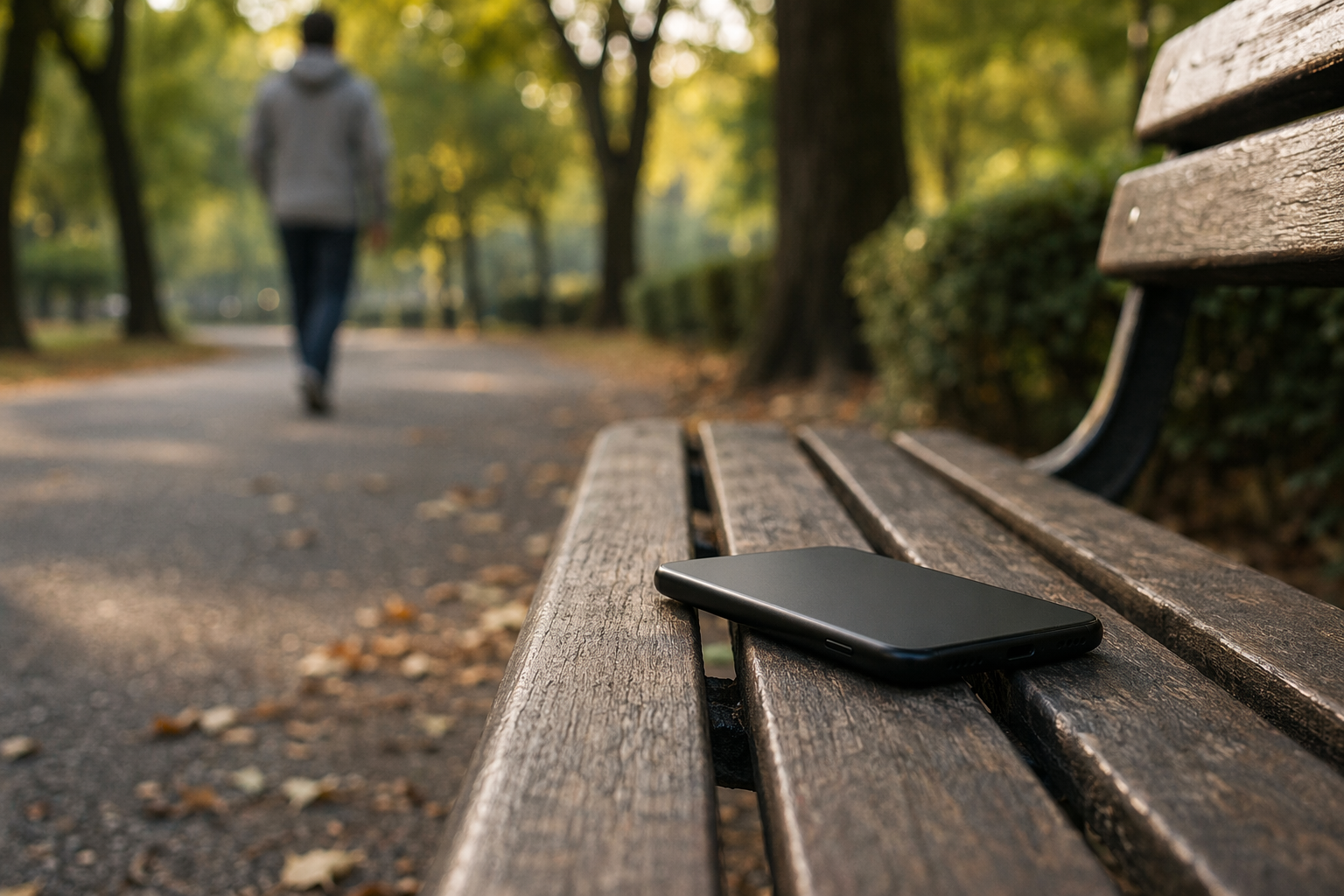
Lost your phone and your stomach just dropped — we get it. Here's the exact sequence to follow, ordered from fastest recovery to last resort. Every minute counts, so let's move.
Step 1 — Use Find My (iPhone) or Find Hub (Android)
This is your first move. Open a browser on another device — a laptop, a friend's phone, anything — and sign in to your account.
- iPhone: Go to icloud.com/find and sign in with your Apple ID. Your phone appears on a map if it's on and connected.
- Android: Go to findmydevice.google.com and sign in with your Google account. Google's Find Hub shows your device's last known location.
- If location is unavailable, leave the tab open — it updates automatically when the phone comes back online.
- Make sure Find My / Find My Device was enabled before you lost it. If it wasn't, skip to Step 2.
Step 2 — Call Your Own Number
This sounds obvious. Do it anyway. If your phone is nearby — between sofa cushions, in a jacket pocket, on a café table — calling it will make it ring even if it's on silent (on iPhone, Lost Mode overrides the silent switch). Borrow a phone and call yourself right now.
- Ask the person who answers to stay put and describe where they are.
- If no one answers but it rings, it's probably still nearby — keep searching.
- If it goes straight to voicemail, the battery may be dead or it's been turned off.
Step 3 — Enable Lost Mode (iPhone) or Lock Device (Android)
Do this now, before you do anything else that takes time. Lost Mode / device lock protects your data immediately and — critically — keeps the phone traceable.
- iPhone — Lost Mode: In iCloud Find My, click your device → Mark As Lost. Enter a passcode (if not already set) and a contact number. The phone locks, disables Apple Pay, and displays your message on the lock screen. Location tracking stays active.
- Android — Lock Device: In Find Hub, click your device → Secure device. You can set a recovery message and a contact number that shows on the lock screen — without unlocking the phone.
- Both options leave tracking enabled. Do not wipe yet — that turns off location.
Step 4 — Contact Your Carrier to Suspend the SIM
A locked phone doesn't stop someone from popping out the SIM and using it in another device. Call your carrier (or use their app from another device) and ask them to suspend your SIM. This prevents:
- Unauthorized calls and data usage billed to you.
- SMS-based two-factor authentication codes being intercepted.
- The thief using your number for account recovery on your apps.
Major US carriers: AT&T (800-331-0500), Verizon (800-922-0204), T-Mobile (800-937-8997). Most let you suspend online too. You can reactivate when you recover the phone — usually instant.
Step 5 — Change Your Critical Passwords
Your phone is a master key to your digital life. Anyone who unlocks it (or extracts the SIM) has a head start on your accounts. From another device, change passwords in this order:
- Email (Gmail / Outlook / Apple Mail). Everything else resets through email, so this is the most critical. Change it, then log out all other sessions.
- Banking and payment apps (your bank, PayPal, Venmo, Cash App). Call your bank if you can't change it fast enough — they can flag your account.
- Social media (Instagram, Facebook, WhatsApp, Twitter/X). These hold personal data and can be used to scam your contacts.
- Password manager — if you use one, revoke access on the lost device immediately.
- Apple ID / Google account — sign out the lost device remotely via account settings.
Step 6 — Remote Wipe (Last Resort)
Wait. Remote wipe is irreversible and — critically — it turns off location tracking the moment the wipe completes. Once you wipe, you lose the ability to find or recover the device. Only do this when:
- You're certain the phone is stolen (not just misplaced).
- You've already suspended the SIM and changed critical passwords.
- Recovery is no longer realistic and your data protection matters more than finding the device.
- iPhone: iCloud Find My → device → Erase This Device. If the phone is offline, the wipe queues and executes when it next connects.
- Android: Find Hub → device → Erase device. Same offline queuing applies.
If Someone Found It Honestly — How They Can Reach You
Here's the frustrating part: most people who find a lost phone want to return it. But if your phone is locked (and it should be), they can't call your contacts, open your messages, or find your name. They're stuck.
Lost Mode does display a phone number on the screen — but only if you set one up before you lost it, or you set it in the moment via iCloud. Most people haven't done that.
The simplest fix that works even when the phone is dead or offline: a QR sticker on the back of your phone or phone case. An honest finder scans it with any smartphone camera — no app needed — and instantly sees your name, a contact number, and a return message. No unlock required. No app required on their end.
Tagback QR stickers are made for exactly this. Each sticker links to a secure contact page you control. The finder scans, you get notified, and you arrange return. It's the one step that works regardless of whether Find My is active, the battery is dead, or the device is in airplane mode.
Step 7 — Report to Police
A police report won't magically recover your phone, but it matters for two reasons:
- Insurance claims. Most phone insurance policies (including carrier insurance and homeowner's/renter's insurance) require a police report number to process a theft claim.
- IMEI blocking. When you file a report, you can provide your phone's IMEI number (found on your original box, your carrier account, or by calling *#06# before you lost it). Police and carriers can flag the IMEI, making the device harder to sell or activate on any network.
- File online if your local department allows it — most do for property theft under a certain value.
Prevention: What to Set Up Before You Lose Your Phone Again
You'll get this phone back, or get a new one. Either way, set these up on day one:
- QR sticker on the back of your phone and case. This is the single most recoverable upgrade you can make. Tagback stickers cost less than a coffee and take two minutes to set up.
- Enable Find My / Find Hub now. iPhone: Settings → [Your Name] → Find My → Find My iPhone → On. Also enable Send Last Location. Android: Settings → Google → Find My Device → On.
- iPhone — Medical ID on lock screen. Open Health app → your profile photo → Medical ID → enable Show When Locked. Add an emergency contact. A finder or paramedic can see it without unlocking your phone.
- Note your IMEI. Dial *#06# and screenshot it. Email it to yourself. You'll need it for a police report or insurance claim.
- Back up regularly. iPhone: iCloud Backup (Settings → [Your Name] → iCloud → iCloud Backup). Android: Settings → Google → Backup. A wipe hurts less when you have a recent backup.
- Use a strong screen lock. A 6-digit PIN minimum. Face ID and fingerprint are fine as primary, but always set a passcode as backup.
- Google account security check: myaccount.google.com/security-checkup — review devices with access and revoke old ones.
FAQ
Can I track my phone if it's turned off?+
It depends. iPhones with iOS 15+ can broadcast a Bluetooth signal even when powered off, so Find My may still show a location for a short period. Android devices generally cannot be tracked when off. For both platforms, Find My will show the last known location before the phone was turned off, which is still useful — it tells you where it was when it went dark.
Should I remote wipe or keep trying to track it?+
Keep tracking as long as the phone is still locatable and you have any realistic chance of recovery. Remote wipe disables location the moment it runs — so wiping is a one-way door. Only wipe when you're certain recovery isn't possible and you're worried about your personal data. If you've already suspended the SIM and enabled Lost Mode, your data is reasonably protected while the phone remains trackable.
How can someone contact me if they found my phone but it's locked?+
If you had Lost Mode active with a contact number, that number shows on the lock screen. iPhones also show Medical ID emergency contacts if you set that up. The most reliable method — which works even when the phone is dead or offline — is a QR sticker on the back of the phone or case. The finder scans it with any phone camera, no app needed, and sees your contact info instantly. Tagback stickers are designed for exactly this situation.
What is an IMEI number and do I need it?+
IMEI stands for International Mobile Equipment Identity — a unique 15-digit number that identifies your specific device on any cellular network. You'll need it when filing a police report (they can flag it as stolen) and when making an insurance claim. You can find your IMEI by dialing *#06# on your phone, checking your original box, or logging into your carrier account online. Write it down somewhere safe before you lose your phone.
Start protecting what matters
Tagback is free, forever. No subscription. No app needed for finders.
Create your free tag